Overview
This section provides an overview of how data is organized and managed within your VIBE session, as well as how to transfer data to and from your VIBE desktop.
Data Organization
Because VIBE runs on the UBELIX cluster, it uses the same file system and storage structure as UBELIX. This means that your $HOME directory, along with all folders and data available in your UBELIX account, is automatically accessible within your VIBE desktop session.
Quota
Standard quota
Your data quota in the VIBE desktop is the same as the one defined by UBELIX. This includes:
-
User
$HOME. A user home directory that includes a 1TB storage. It is located under/storage/home/$USER, where$USERis the campus account. Regular snapshots provide possibility to recover accidentally modified or deleted data. -
Temporary storage space. A temporary storage space located at
/storage/scratch/user/$USERwith 15TB storage capacity meant for temporary data only with no snapshot and no backup and automatic deletion policy after 30 days.
Please refer to the official UBELIX documentation for specific information about the different storage services provided.
Additional quota
If your project requires more storage you can request space on the Research Storage. It offers centralized, cost-effective storage with daily backups, as well as seamless connectivity and data transfer between UBELIX and the VIBE environment. You can request a quote through the University IT Services website.
If you are unsure about the requirements of your project, feel free to contact us.
Data Transfer
Data can be transferred to and from your VIBE environment in several ways. Below we describe the recommended options.
Via UBELIX OnDemand
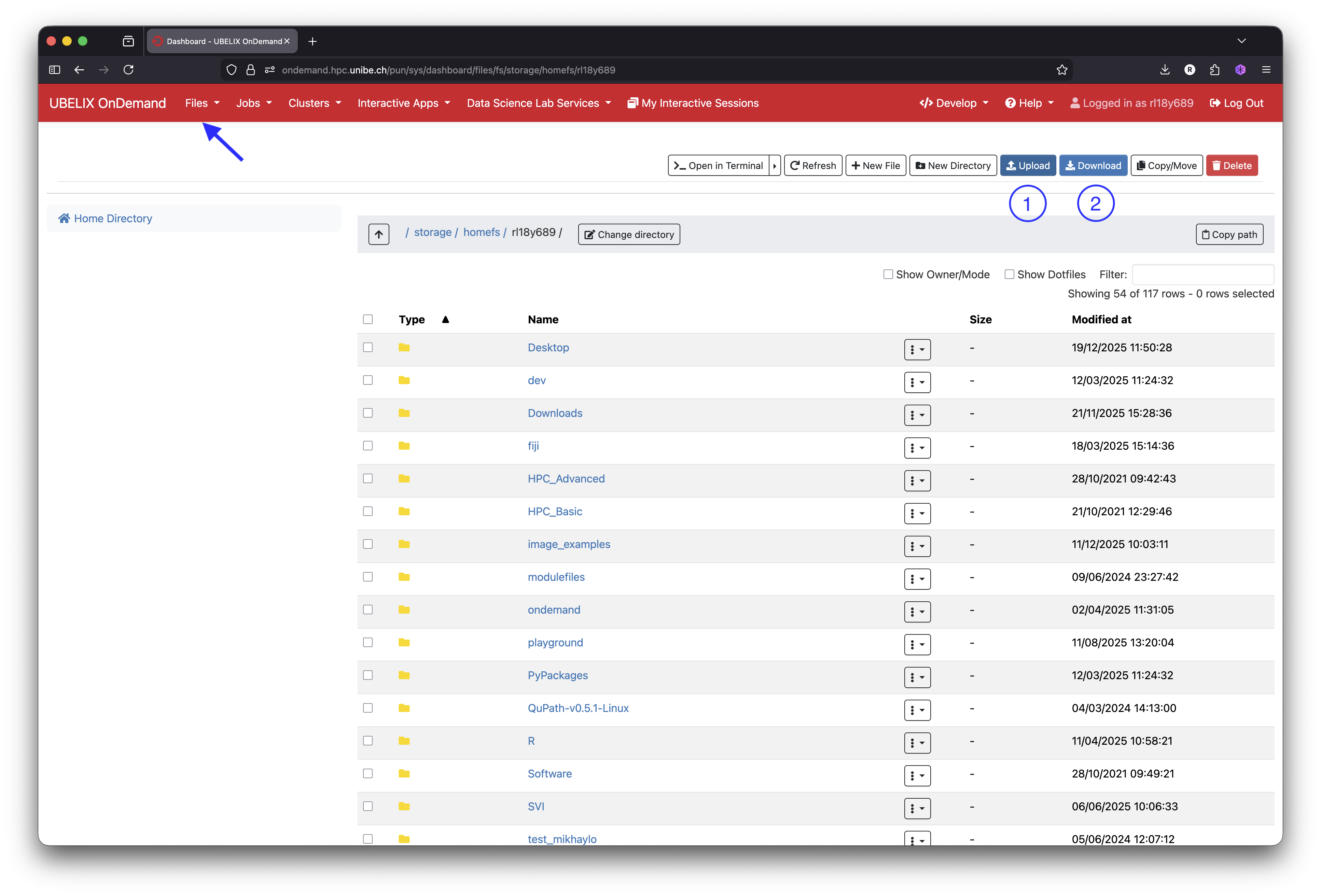
You can use the UBELIX OnDemand web interface to upload and download files.
- Click on “Files” in the menu bar at the top left of the UBELIX OnDemand portal (see arrow in the image below).
- Your session’s
$HOMEdirectory will be displayed along with its contents. - Use the “Upload” button to transfer files from your local computer to any directory within your VIBE session.
- Use the “Download” button to copy files from your VIBE session to your local computer.
Via Command Line (Advanced)
If you are comfortable working with the command line, you can transfer data using tools such as scp or rsync.
Please refer to the official UBELIX documentation for detailed instructions:
Via a Cloud Service
If your data is stored in a cloud service (e.g., OneDrive, Google Drive, Dropbox), you can access it directly from VIBE using the web browser. Launch Firefox from VIBE, find your storage service provider and simply log in with your credentials as you would from any other system and upload or download files as needed.